
Add your HoldATime booking calendar and booking form to your website
Date published: November 13, 2026
Updated: November 13, 2026
Author: Kelly Fansler, Founder HoldATime
Turn on website embeds, copy a calendar or booking snippet, and paste it into your site. Visitors see open times and finish the reservation on HoldATime.
You can put a HoldATime calendar, a booking form, or both on a page you already own. Visitors see open times there. They still sign in or join HoldATime before a booking is confirmed.
This guide assumes the organization and at least one public resource already exist. If you are still creating the resource, start with How to set up amenity reservations with HoldATime. Website embeds need a HoldATime Pro plan. On Free or Core, the Embeds page says “Embeds are a Pro feature” and does not show snippets.
What you can put on your site
Each public resource has three widgets. Copy the one that matches the page, instead of typing the HTML yourself.
- Calendar. Read-only open times. Each slot opens the booking page.
- Booking embed. Open times and a confirmation panel. The visitor must still log in or join. Optional
data-email,data-name, anddata-external-idonly pre-fill the form. - Calendar and booking. One widget with the calendar and confirmation panel together. The visitor must still log in or join.
Who may register is separate. In Customer features, “Who can register and book” is Only customers you add, Open registration, or Open to the public. That setting still applies when the widget sits on your site.
Turn website embeds on
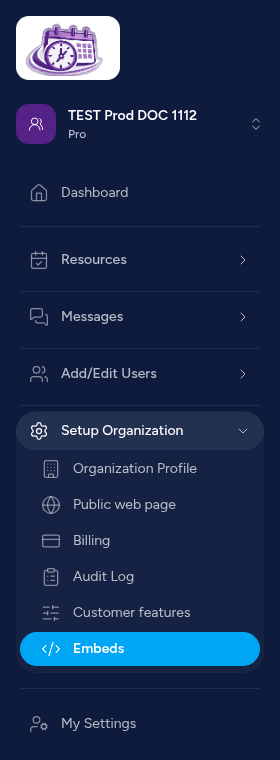
Turn on Advanced Menu in the sidebar. Under Setup Organization, open Embeds. You can also open your organization, then Settings, then Embeds. Screenshots 1 through 3 show this page before and after the switch.
The page intro is: “Paste a calendar, a booking form, or both on your website. Visitors see open times. They must log in or join before a booking is confirmed.”
Turn on Enable website embeds. The hint under the switch says: “When off, public embed pages stay unavailable and no snippets are shown.” The change saves immediately. The toast says “Website embeds are on.”
Websites that can show the embed is optional. “One website address per line, such as https://example.com. Leave this empty to allow any site. When you add addresses, only those sites and HoldATime can show the embed.” Choose Save websites after you edit the list. The saved toast is “Embed websites saved.”
Copy the snippet
When embeds are on and the resource is public, the page lists Calendar, Booking, and Calendar and booking for that resource. Each one has a script and an iframe, with Copy. After a successful copy the button says Copied. Screenshots 4 through 6 show the widgets and the copy button.
Prefer the script. HoldATime sends the frame’s height to the page, and the script grows the widget to fit. A pasted iframe starts at a minimum height of 320 pixels and does not grow unless you raise that height. Use the iframe when the site builder strips script tags.
Calendar and booking, script:
<div id="holdatime-booking" data-org="YOUR-ORG" data-amenity="YOUR-RESOURCE-ID" data-view="both" data-email="" data-name="" data-external-id="" data-theme="light"></div>
<script src="https://holdatime.com/embed/booking.js" async></script>
Calendar and booking, iframe:
<iframe src="https://holdatime.com/embed/book?org=YOUR-ORG&amenity=YOUR-RESOURCE-ID&view=both&theme=light" style="width:100%;min-height:320px;border:0;" title="HoldATime calendar and booking"></iframe>Calendar only, script:
<div id="holdatime-calendar" data-org="YOUR-ORG" data-amenity="YOUR-RESOURCE-ID" data-theme="light"></div>
<script src="https://holdatime.com/embed/calendar.js" async></script>
Booking only uses the same booking script with data-view="booking". Replace YOUR-ORG and YOUR-RESOURCE-ID by copying the snippet. Do not retype them from this article.
Paste it into your page
Paste the snippet into the HTML of the page where the widget should appear. Screenshot 7 is that paste. The in-app steps are the same on any site that allows custom HTML:
- Copy the script or iframe snippet for the widget you want.
- Paste it into the HTML of the page on your website where you want the widget to appear.
- Optional: add
data-email,data-name, ordata-external-idif you want to pre-fill visitor info on the booking or combined widget. - Visitors see the resource's open times in the widget. They must log in or join HoldATime before a booking is confirmed. Times in the embed can lag briefly after a slot is taken, so confirm the reservation on HoldATime.
- Test on your site. The script snippet resizes automatically.
Where you paste depends on the builder, and each of these accepts custom HTML: a Custom HTML block in WordPress, a Code block in Squarespace, an Embed HTML or iframe element in Wix, and an Embed element in Webflow.
What your visitors see
Screenshot 8 is the widget on another site. The visitor picks an open time. Continue to book stays unavailable until a time is selected. Screenshot 9 shows a selected time and Sign in to book.
Sign in to book opens HoldATime in a popup, not inside your page. Screenshot 10 is that window. A new visitor chooses Create an account, then “I am here to reserve,” and enters your organization code. After they verify email, the popup returns to the embed.
Once they are signed in, the widget says “Continuing as” their name and offers Sign out. Screenshot 11 is that state. The line “Sign in or join is required to finish this booking” is gone.
Continue to book opens a new browser tab. It does not replace your website. The tab is the HoldATime reservation with the date, time, and unit already filled in. Screenshot 12 is that reservation. The visitor reviews and confirms there.
If you pre-filled data-email and the visitor is still signed out, Continue to book opens HoldATime sign-in in that new tab and returns them to the same reservation. Without a pre-filled email, the new tab goes straight to the reservation page.
If the widget does not show
- Embeds are off, or the plan is not Pro. Turn on Enable website embeds after you upgrade.
- The resource is not public. The Embeds page says “Add a public resource before you can copy an embed snippet.”
- You listed allowed websites and this site is not one of them. Add the full address, including https://, and save.
- The builder removed the script. Paste the iframe snippet instead, and raise
min-heightif the frame looks cut off. - The browser blocked the sign-in popup. Allow popups for your site, then choose Sign in to book again.
- “Sign in to book” is expected. The embed shows times first. The account comes before the reservation is confirmed.
Trusted sign-in
Trusted sign-in is optional and meant for a developer. “Enable trusted sign-in” requires website embeds and a Pro plan. The booking embed then accepts a short-lived signed token from your site. Existing HoldATime emails must confirm once by email. The setup steps are on the trusted embed page.
How to add a HoldATime booking calendar to your website
- Open Embeds. Turn on Advanced Menu. Under Setup Organization, open Embeds. The address is your organization slug, then /settings/embeds.
- Turn on website embeds. Turn on Enable website embeds. When it saves, HoldATime shows Website embeds are on. Leave Websites that can show the embed empty to allow any site, or add one https address per line and choose Save websites.
- Copy a snippet for one resource. Each public resource has a Calendar, a Booking embed, and a Calendar and booking widget. Copy the script snippet from the Embeds page. Use the iframe snippet only when your site builder blocks scripts.
- Paste the snippet into your page. Paste the snippet into the HTML of the page where the widget should appear. WordPress, Squarespace, Wix, and Webflow can do this with a custom HTML or embed block.
- Test the booking path. Open the page, pick a time, and sign in from the popup. The embed then shows Continuing as your name. Continue to book opens the reservation in a new tab with that time filled in.
Frequently asked questions
Does a HoldATime website embed cost extra?
Website embeds are a HoldATime Pro feature. Free and Core show Embeds are a Pro feature and do not list snippets. Enterprise includes Pro, so embeds are included there too.
Can I embed more than one resource?
Yes. Each public resource has its own snippets. Paste one snippet per resource, on the same page or on different pages.
Are bookings from the embed the same as bookings on HoldATime?
Yes. After the visitor continues, they finish the same HoldATime reservation. The date, time, and unit they picked in the embed are already filled in.
Should I use the script or the iframe?
Use the script. It grows the frame to fit the calendar. A pasted iframe starts at a minimum height of 320 pixels and stays that height unless you make it taller. Use the iframe when your site builder removes script tags.
What is trusted sign-in?
Trusted sign-in is an advanced option for developers. It needs website embeds and a Pro plan. Your site can then sign a visitor in for this organization with a short-lived signed token. Existing HoldATime emails confirm once by email.
Can members join a waitlist from the embed?
Not inside the widget. Website embeds are a Pro feature and show open times. If a time is full, members join or claim a waitlist spot on HoldATime, on Core or above. The waitlist is not available on Free or School.
The numbered screenshots under this article follow the same order: open Embeds, turn the switch on, copy a snippet, paste it, then walk through a visitor booking.
Sign up or compare plans on HoldATime pricing if embeds are not on your plan yet.
In the product
1. Open Embeds from Setup Organization after Advanced Menu is on. 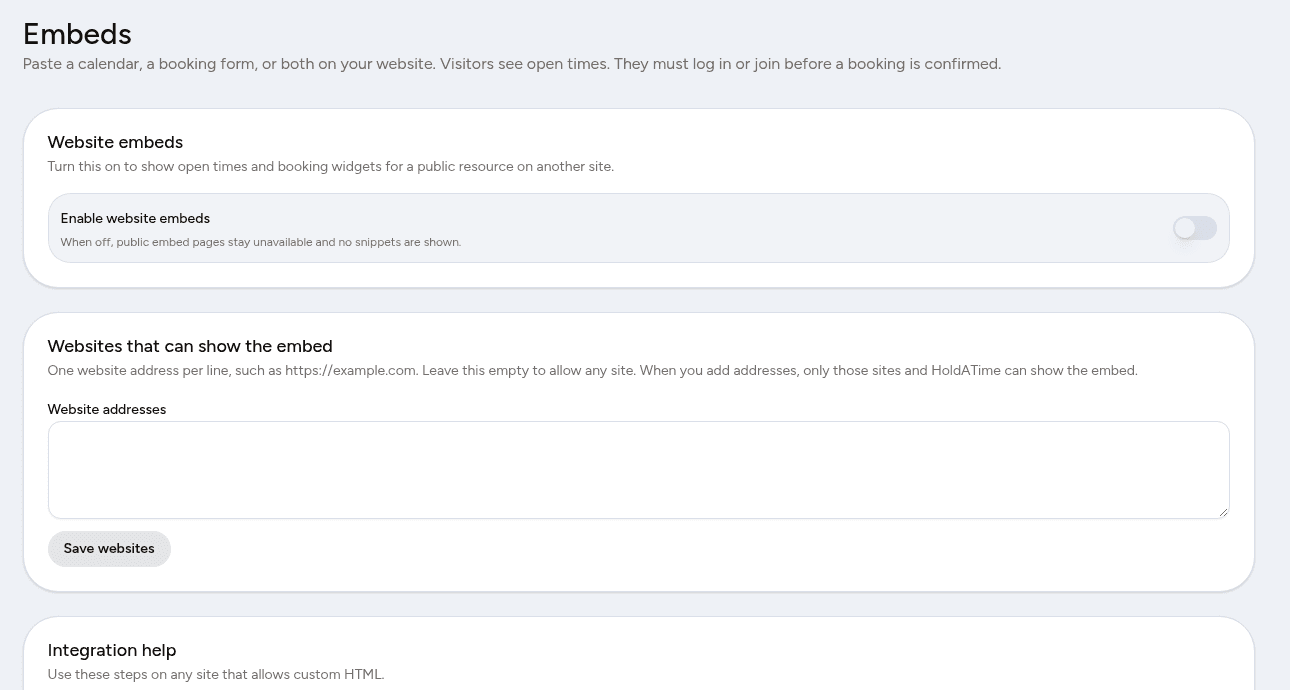
2. Before you start, Enable website embeds is off and the website list is empty. 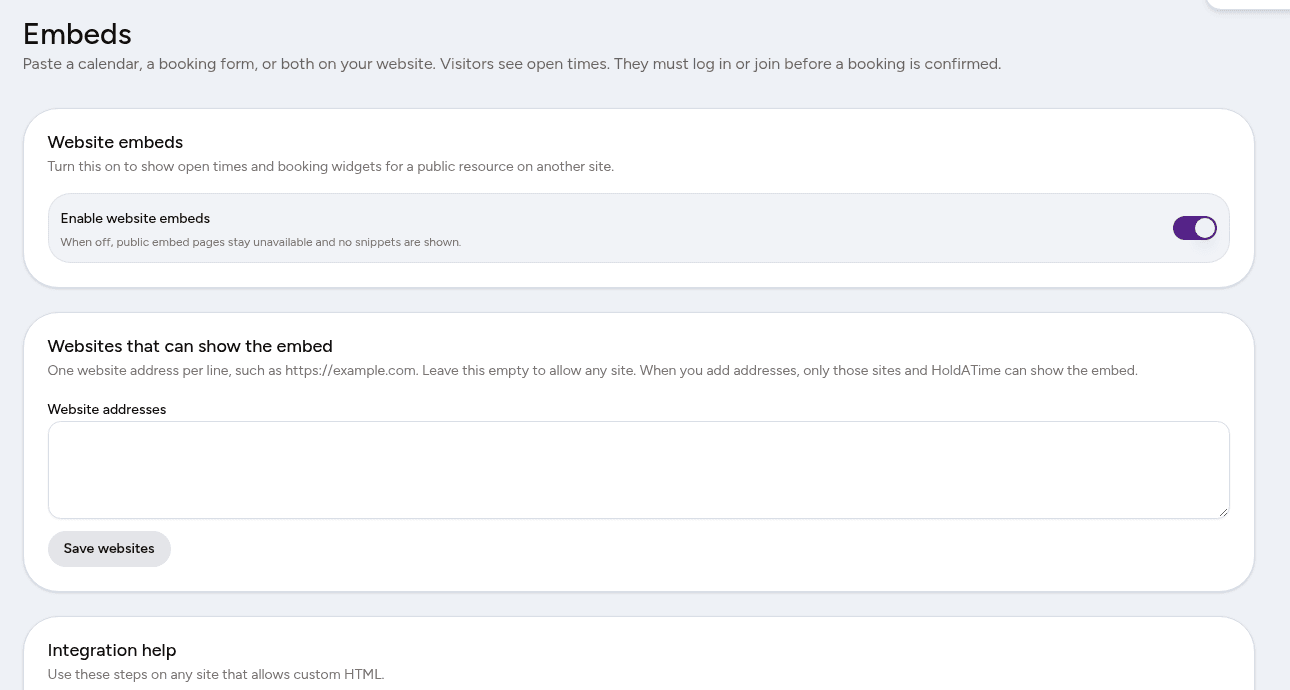
3. Turn on Enable website embeds. The toast says Website embeds are on. 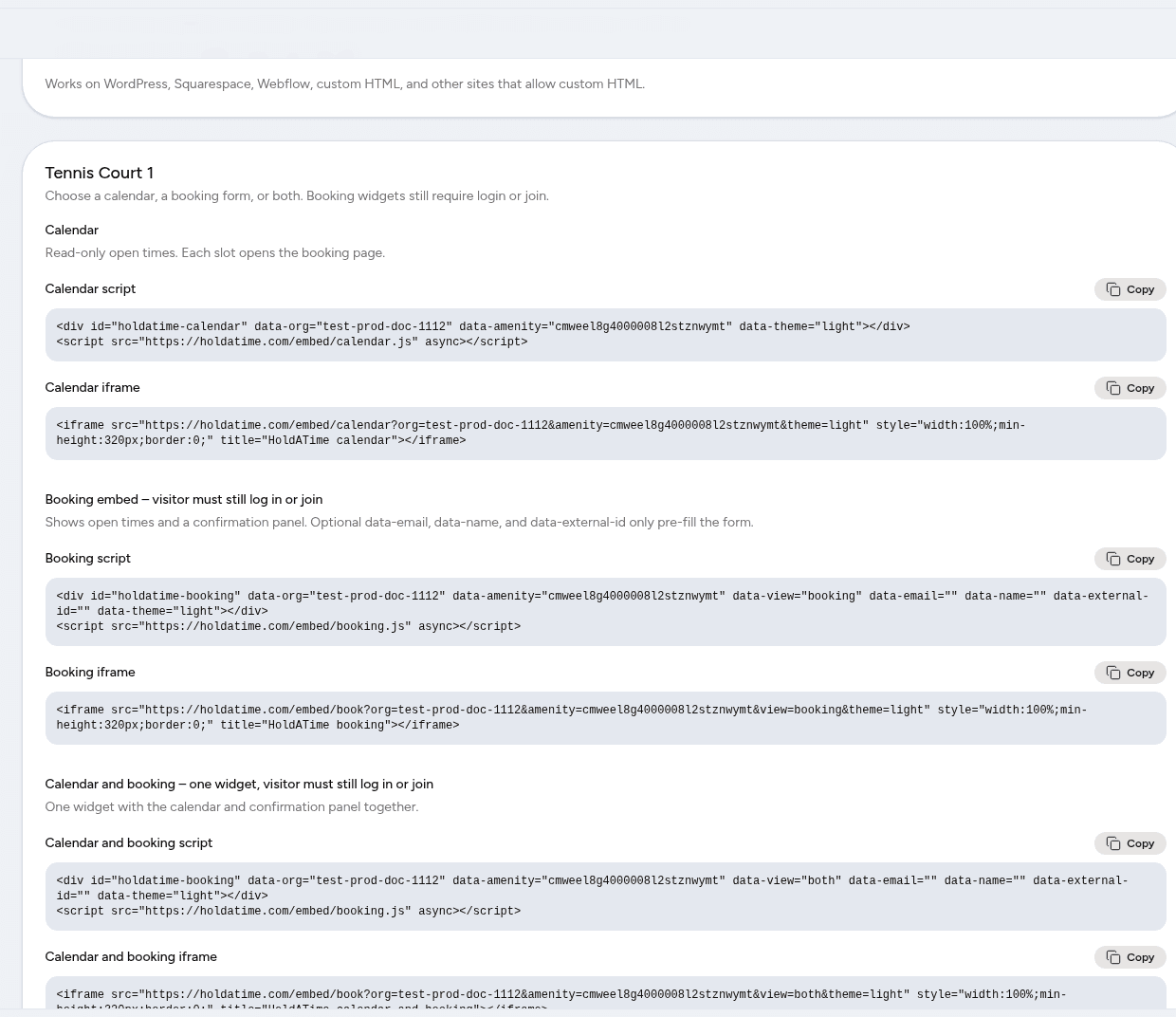
4. Each public resource offers a calendar, a booking form, or both in one widget. 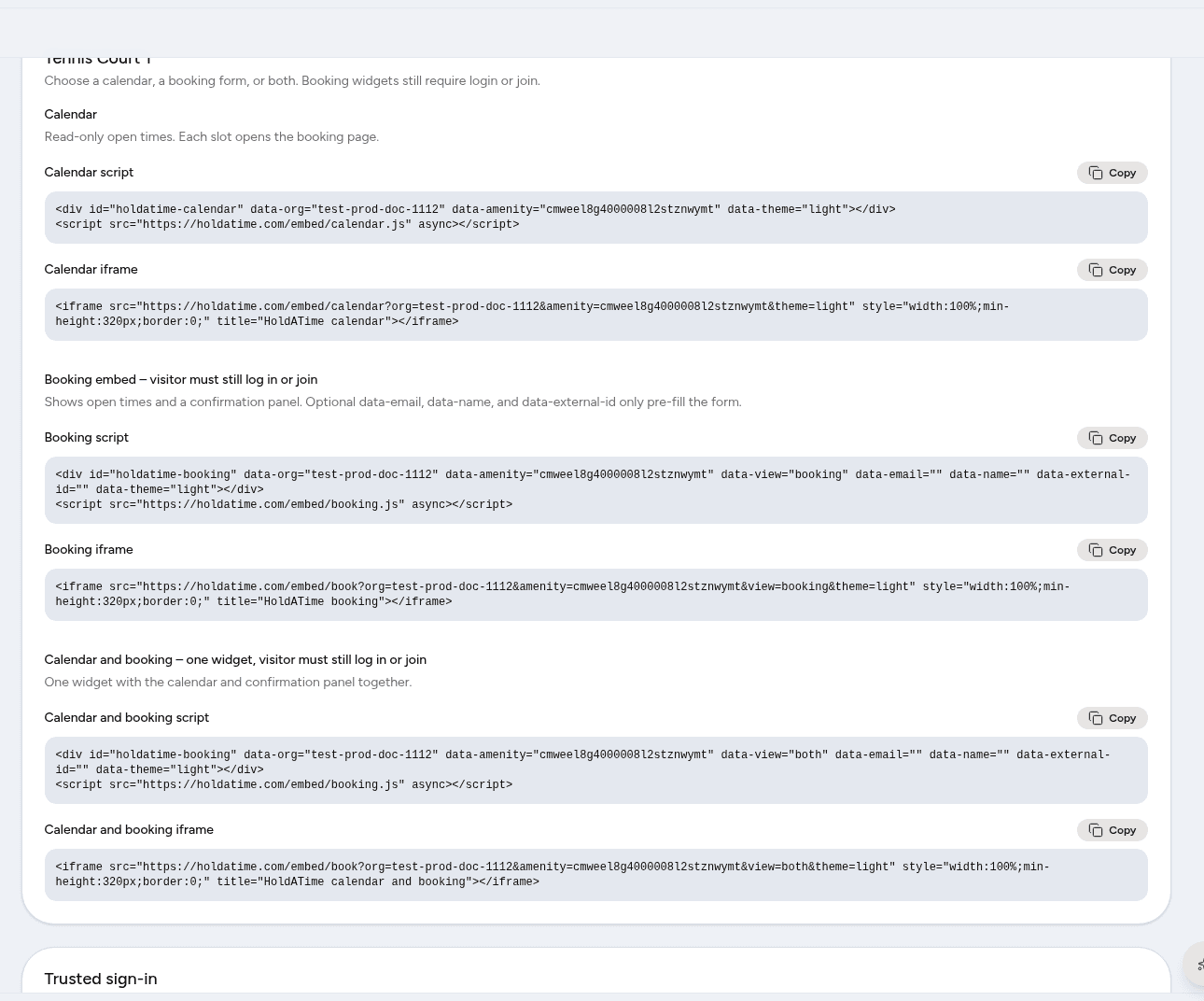
5. Each widget has a script snippet and an iframe snippet. 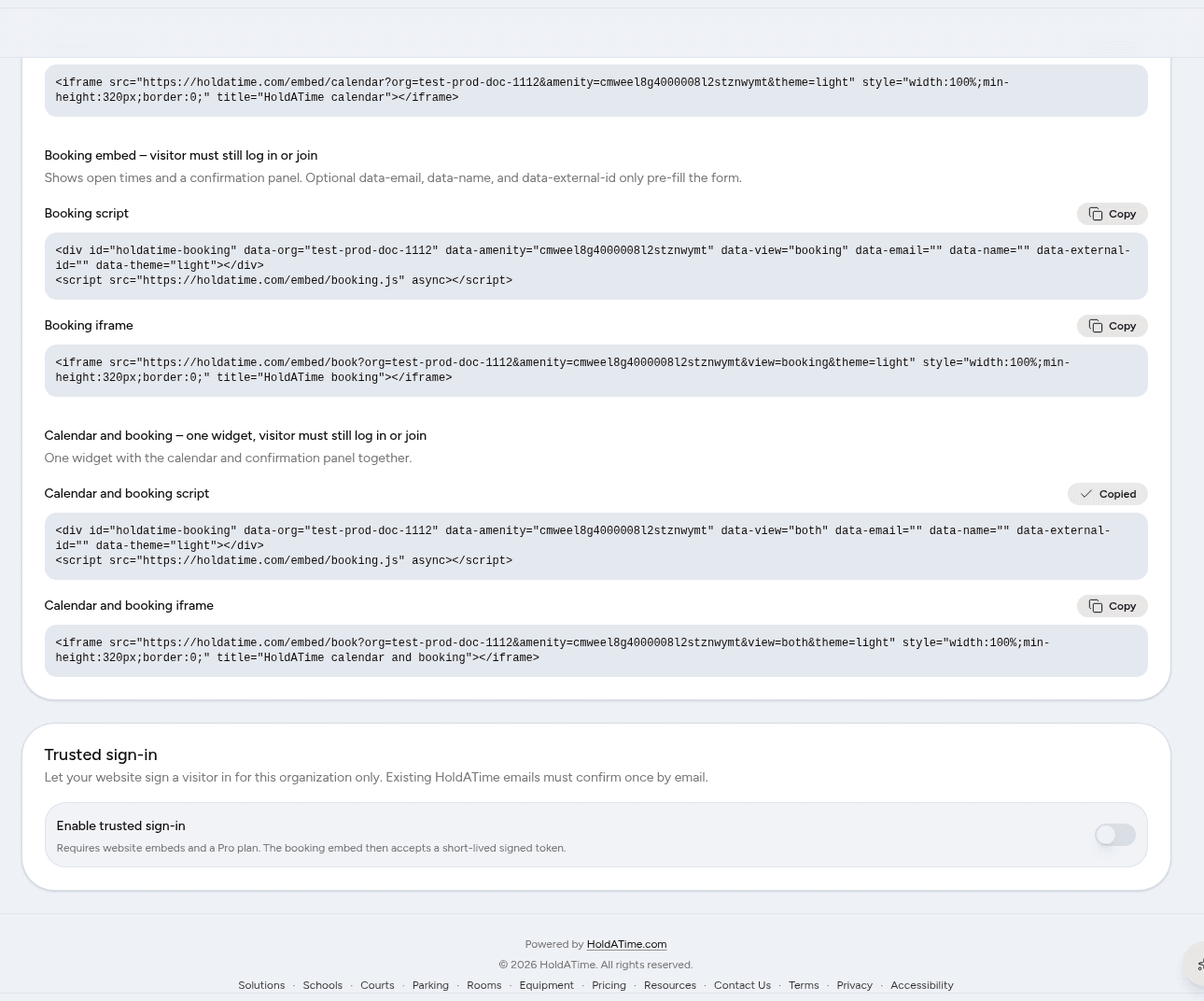
6. Copy changes to Copied after the snippet is on your clipboard. 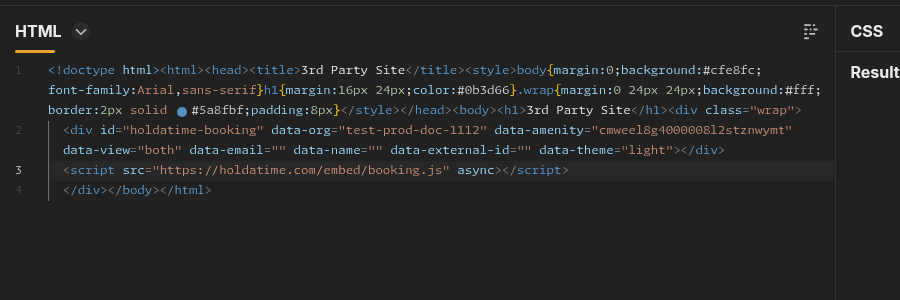
7. Paste the copied snippet into the HTML of the page on your site. 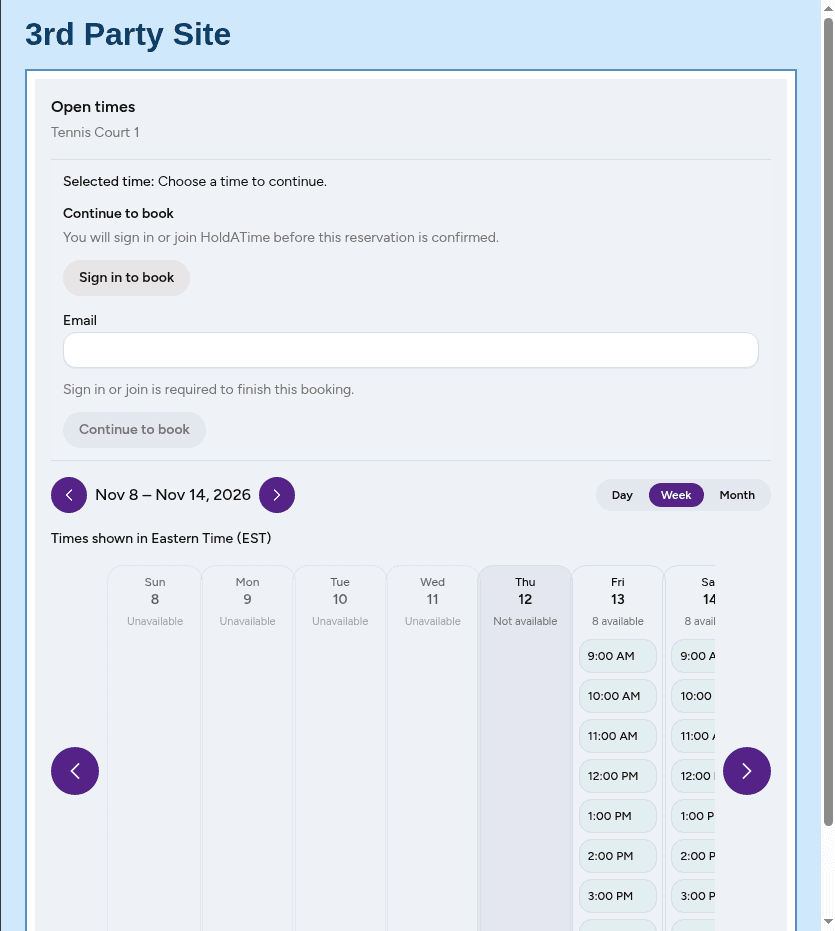
8. The calendar and booking widget on your own page, with open times visible. 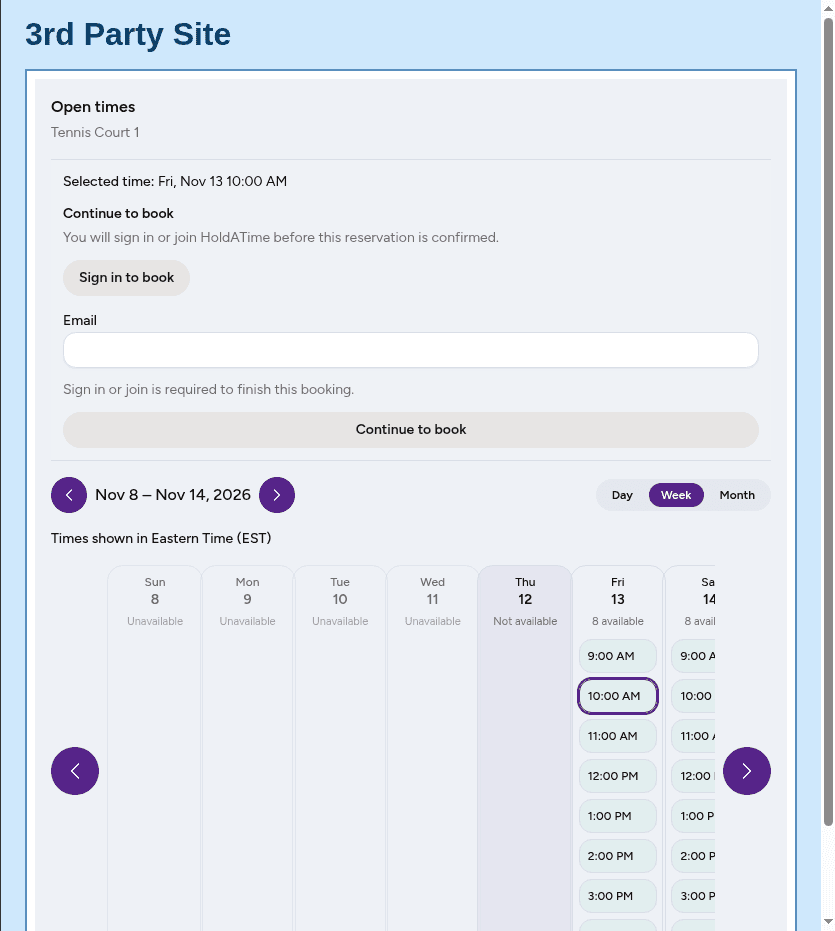
9. After a time is selected, Sign in to book is available. Continue to book waits for a time. 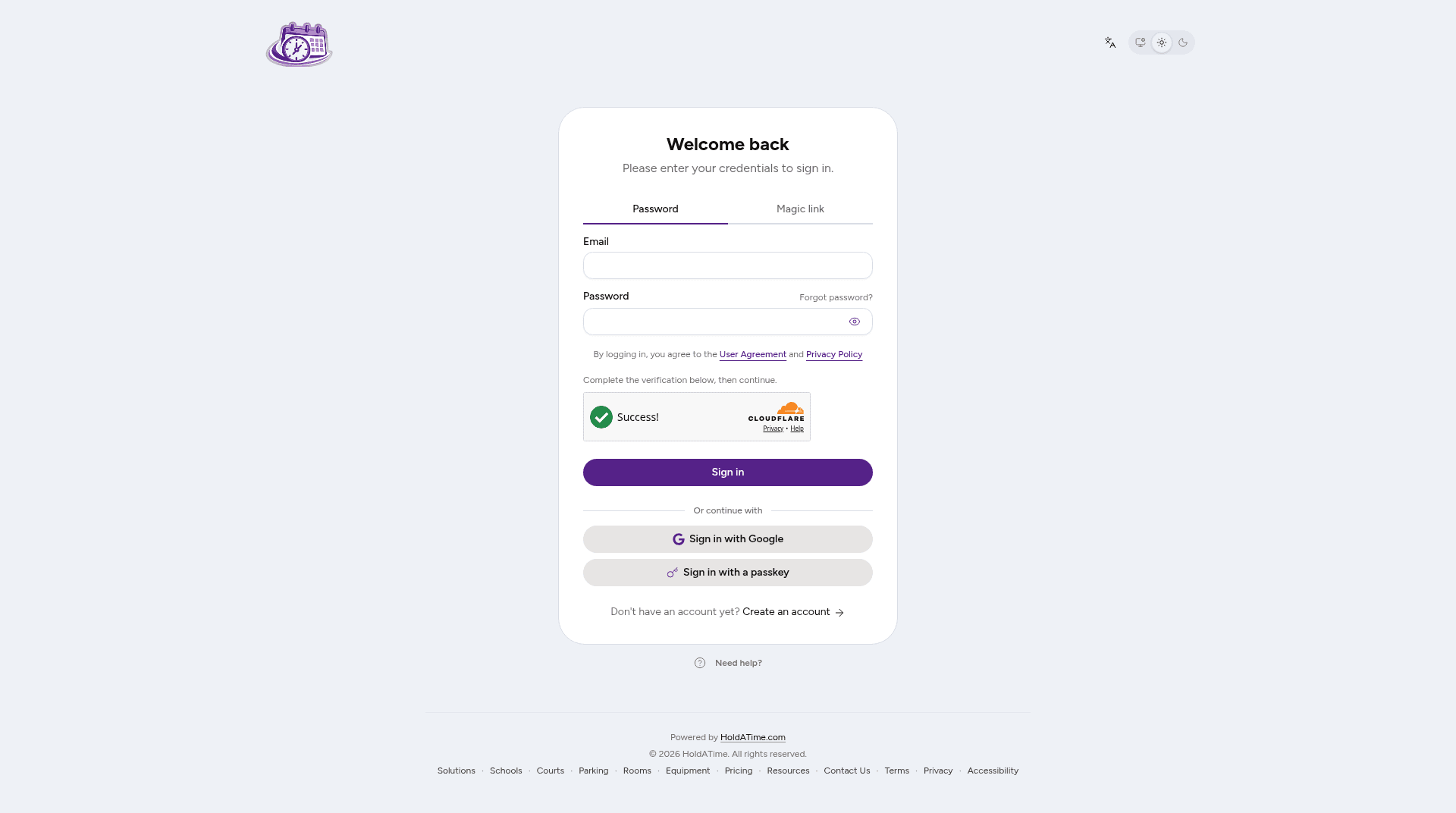
10. Sign in to book opens HoldATime in a popup, not inside your page. 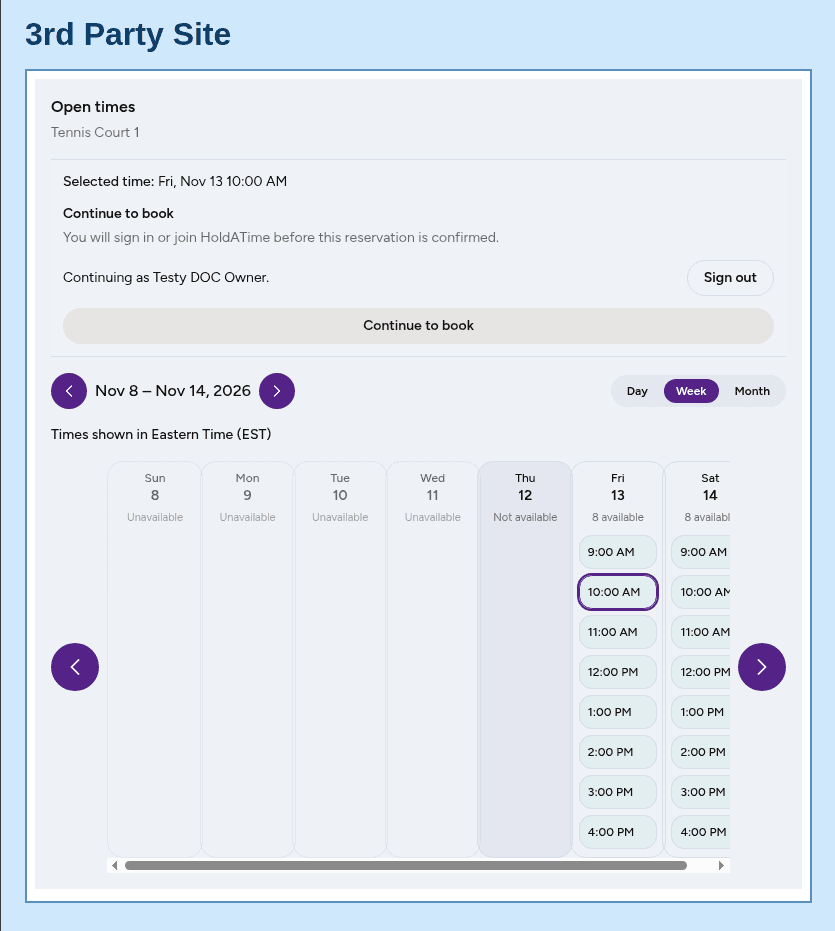
11. After sign-in, the embed shows Continuing as the visitor, with Sign out. 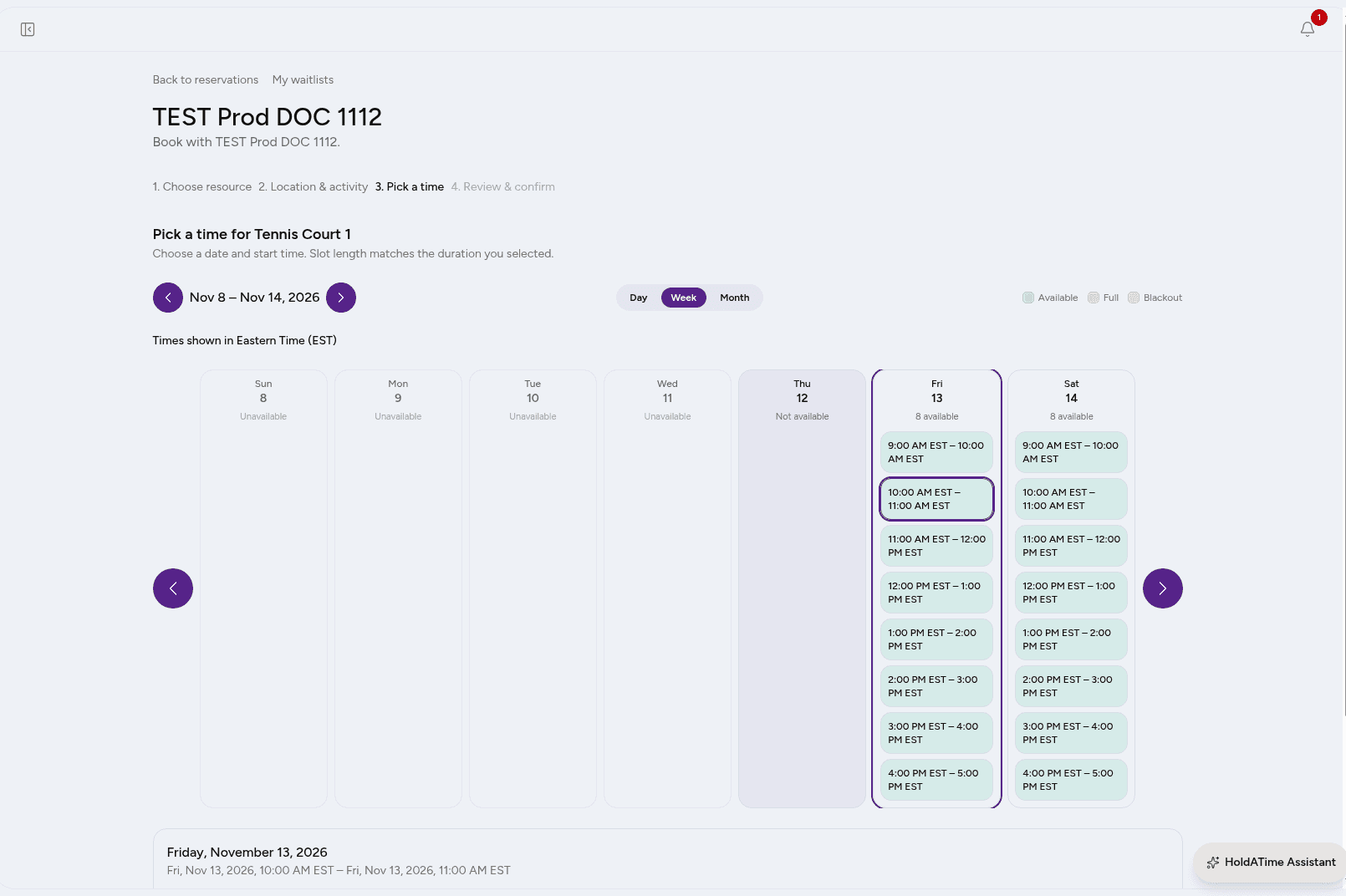
12. Continue to book opens the reservation in a new tab, with the chosen time filled in.