
How to set up amenity reservations with HoldATime.com
Date published: August 7, 2026
Updated: October 12, 2026
Author: Kelly Fansler, Founder HoldATime
Walk through HoldATime setup: publish a booking webpage, add amenities and fair-use rules, import members or open booking to the public, limit amenities by Groups, enable recurring bookings where admins allow them, print a QR poster, and take your first reservation.
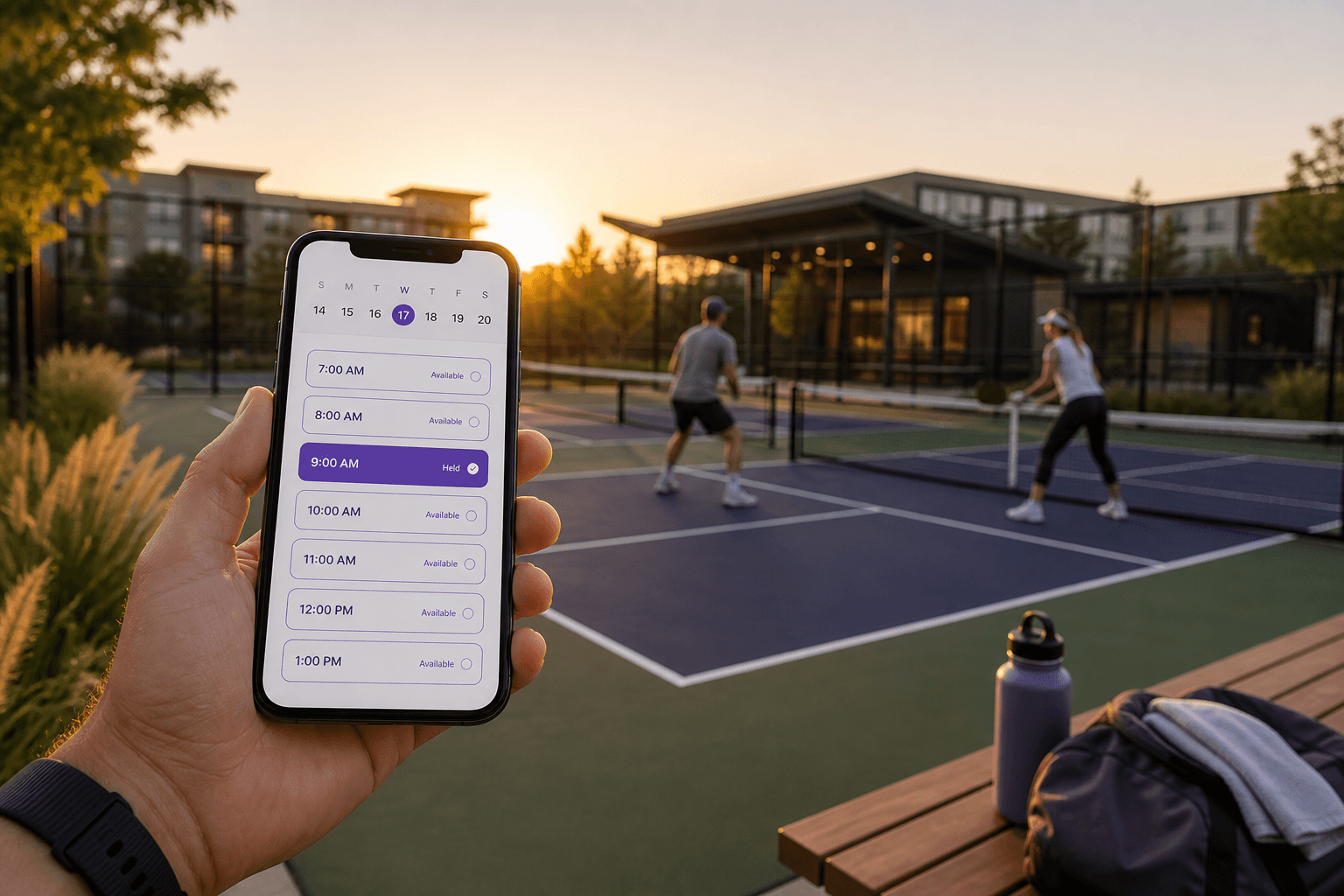
Shared courts, parking, rooms, and equipment shouldn’t require a clipboard, a group chat, or someone’s personal Google Calendar. Boards and managers need a simple way to publish availability, set fair-use rules, and let the right people book — without becoming the reservation referee every evening.
That’s what HoldATime.com is for. You get a published booking webpage for your organization, resources with clear rules, and a choice: open the page to the public, limit it to registered members of that organization, or turn the public page off. Members scan a QR poster, hold a time that fits the rules, and show a printable pass on-site.
This walkthrough is the Saturday-morning version: signup to first reservation in about the time it takes to brew coffee. Start on the Free plan — no credit card — with a free landing page, 50 future reservations, a 14-day booking window, and unlimited amenities and users.
Before you start
Have a rough idea of:
- The first resource you want live (one court, guest parking, or a clubhouse room)
- Whether the public page should be open, limited to registered members of this organization, or turned off
- Optional: a spreadsheet of existing members (names and emails are enough to get started)
How to set up HoldATime and take reservations
- Create your account and organization. Sign up free, name your organization, and complete the short create flow. You’re guided into resources, not a blank theme.
- Add your first resource. Open Resources, then add the space (for example, Pickleball Court A or Guest Parking). One room does not ask for a unit prefix. Add units only when you have more than one space. Set booking hours, then choose flexible times, fixed slots only, or fixed slots plus a custom-time option. When you generate fixed slots, the cleaning buffer is the gap after each slot.
- Set fair-use rules. Minimum and maximum duration, cleanup buffers, and approvals when you need them are applied so conflicts don’t get reserved in the first place. Optionally turn on recurring reservations so authorized bookers can create Daily, Weekly, or Monthly series (off by default). Add booking questions when you need answers on the request, and an approval group when more than one person must say yes.
- Publish your booking webpage. Choose open to the public, registered members of this organization only, or no public page. People book from Resources, then Book.
- Decide who can book. Optionally create Groups (for example Owners vs Renters, or Coaches vs Teachers) and restrict each resource so only listed groups can reserve it.
- Print a QR poster and take a test reservation. Hang the poster where people already look. Scan it, hold an open slot, and print or show the QR pass. That’s the same flow your members get on phone or tablet — including installing HoldATime from the browser as a PWA.
Who can see the public page
You’re in control. The public page can be open to the public, limited to registered members of that organization, or turned off so there is no public page. Change the setting when your policy changes — you don’t need a second product.
Within the roster, you can go further with Groups: limit a clubhouse to Owners, a practice field to Coaches, or guest parking to Renters. Admins also choose which resources allow recurring bookings; everywhere else, people create single reservations only. Customers who belong to the organization can open their dashboard after they sign in.
What “done for today” looks like
- Organization created on HoldATime.com
- At least one resource live with fair-use rules
- Booking webpage published
- Access set (imported list or open) and a QR poster ready
- One successful test reservation with a printable pass
Resources stay free until you add an optional booking fee. Connect Stripe from Settings → Billing on Core or Pro (not Free). Bookers pay the listed fee at Stripe Checkout; money goes to your organization’s Stripe account and HoldATime keeps $0. Details: how to set up payments for resource reservations.
From there you can add more resources, refine rules, and grow capacity when you need it. See pricing for Free, Core, and Pro limits — or get started free and take your first reservation today.
If you manage an HOA, you may also be interested in HOAResidents.com. It includes the same amenity booking capability as HoldATime, plus HOA-specific features such as a free public website, resident portal, documents, announcements, messaging, and board tools — at a very similar price point.
In the product
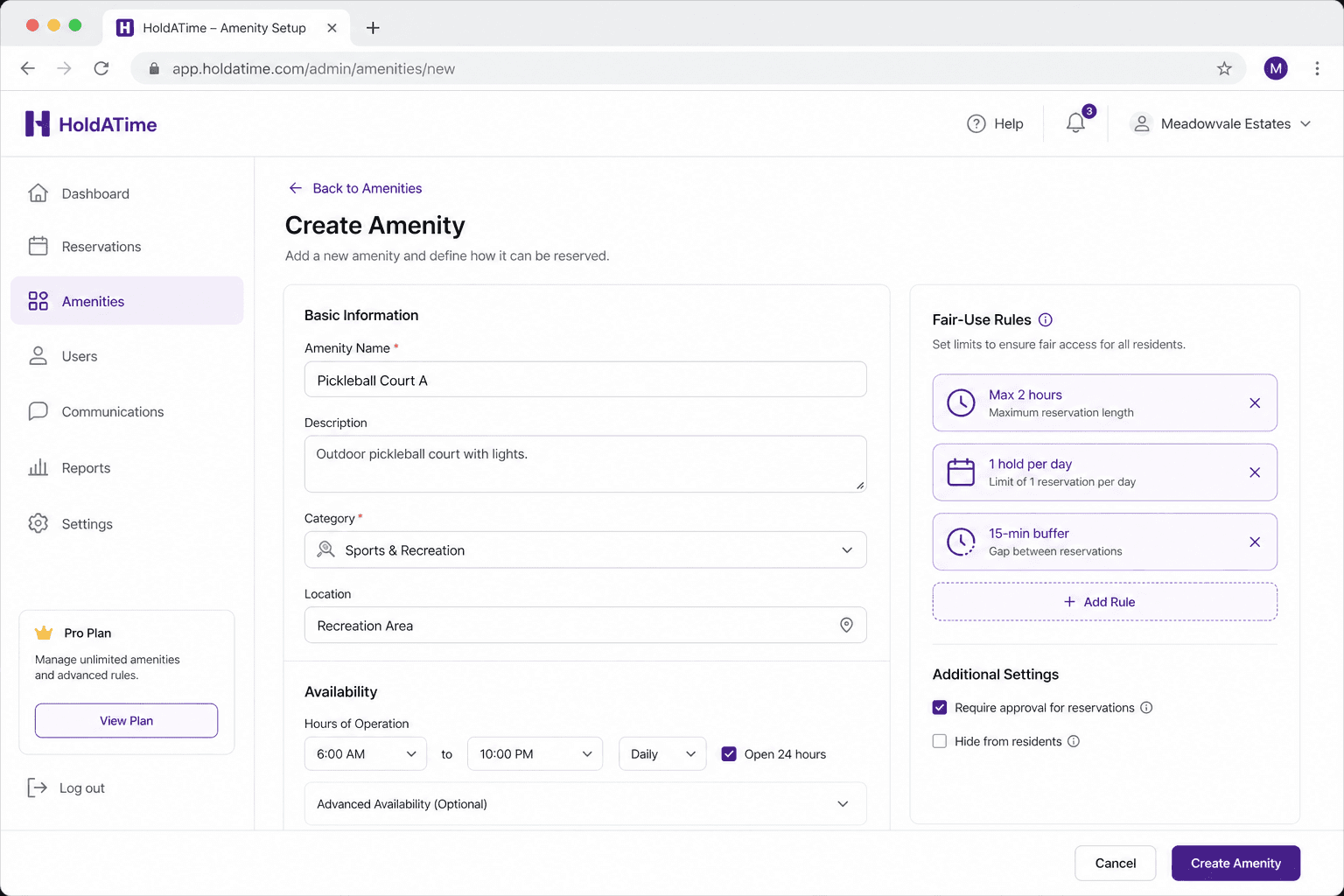
Amenity setup: name the space, set availability, and apply fair-use rules like duration caps and daily holds. 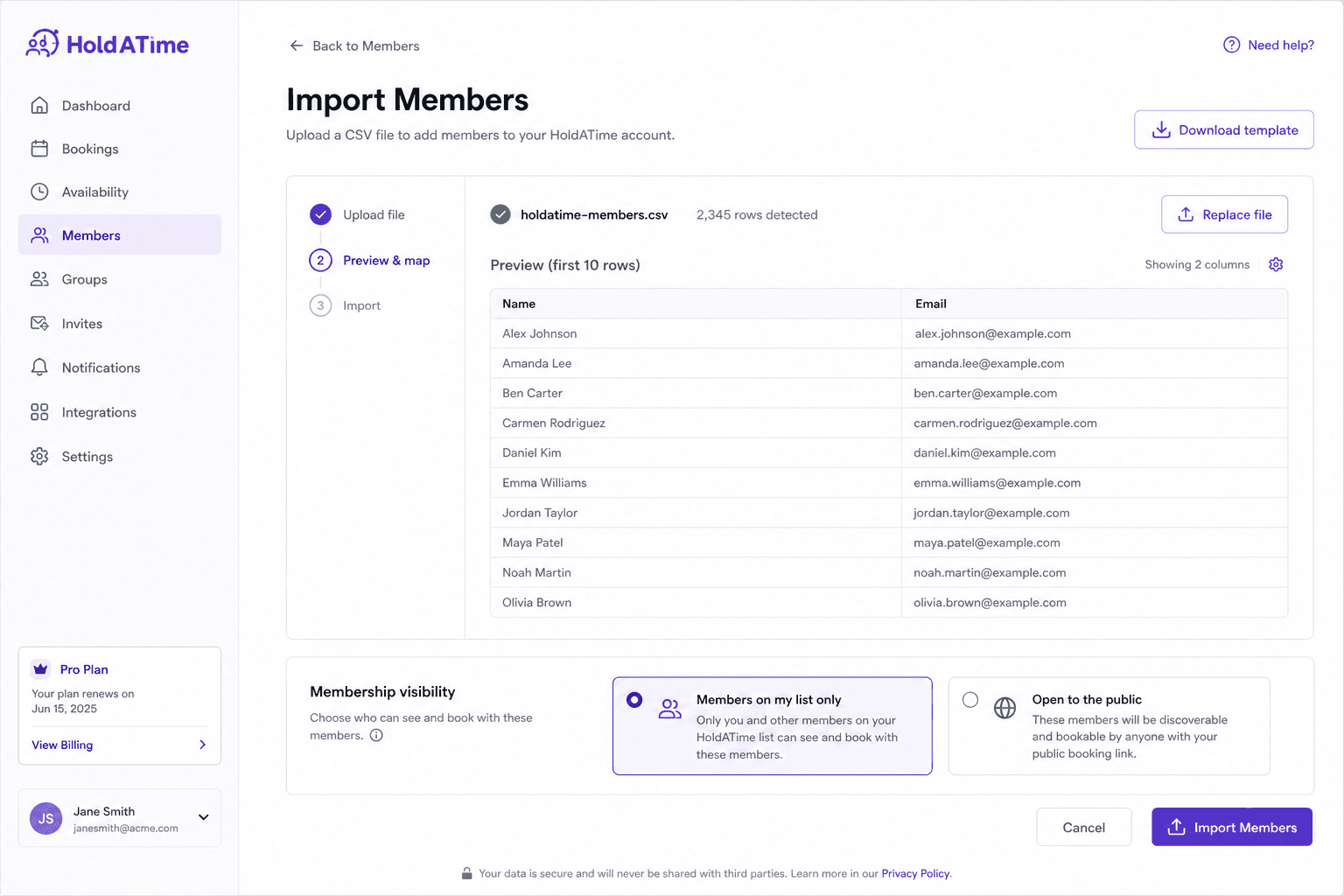
Import members from a spreadsheet, then choose list-only access or open booking to the public. 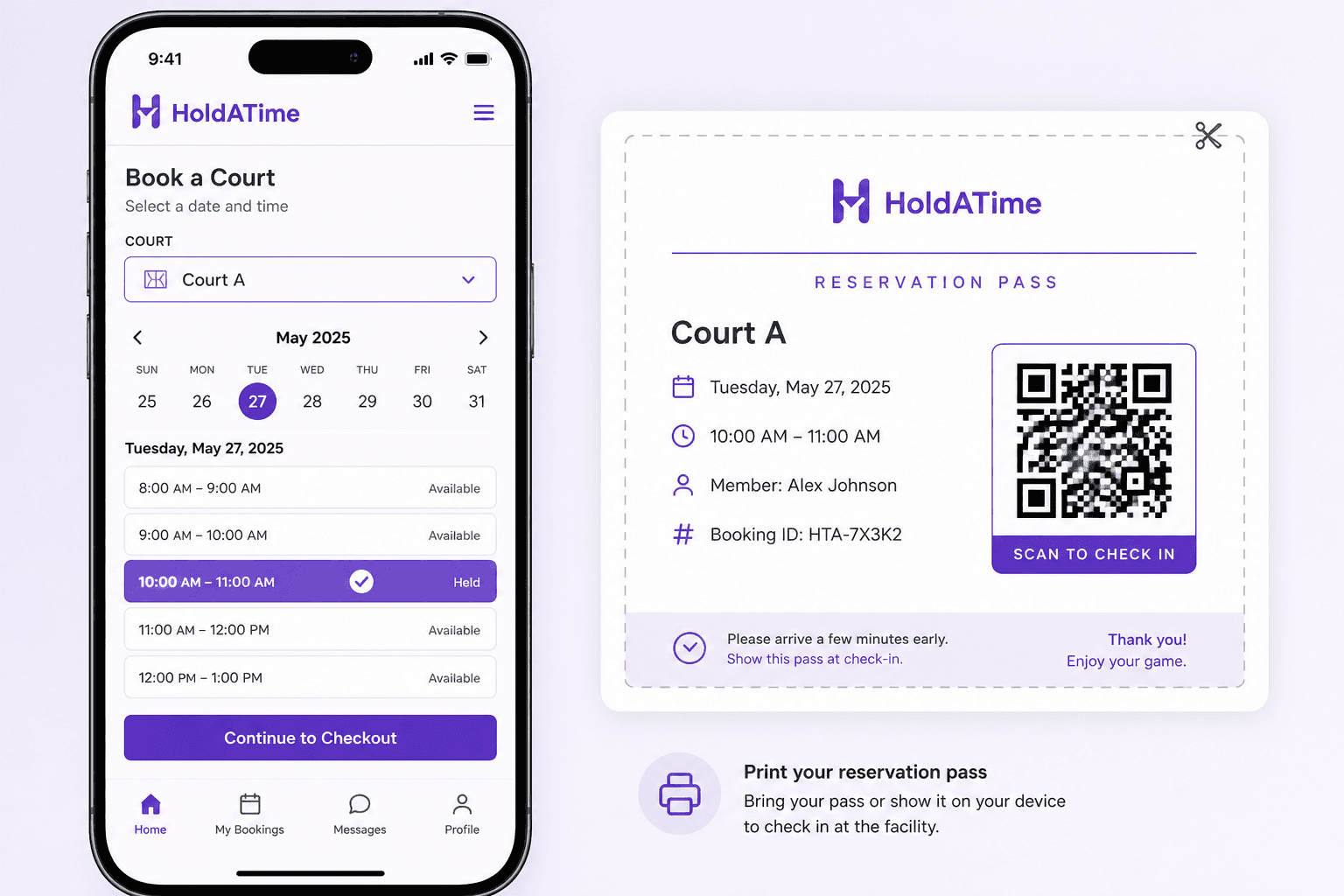
Members hold an open slot and show a printable QR pass — the same flow on phone or tablet.