
How to Set Up Payments for Amenity Reservations
Date published: August 15, 2026
Updated: October 12, 2026
Author: Kelly Fansler, Founder HoldATime
Connect Stripe from HoldATime Billing, add a booking fee to a court, field, or room, and collect reservation payments. HoldATime keeps $0 — money goes to your organization’s Stripe account.
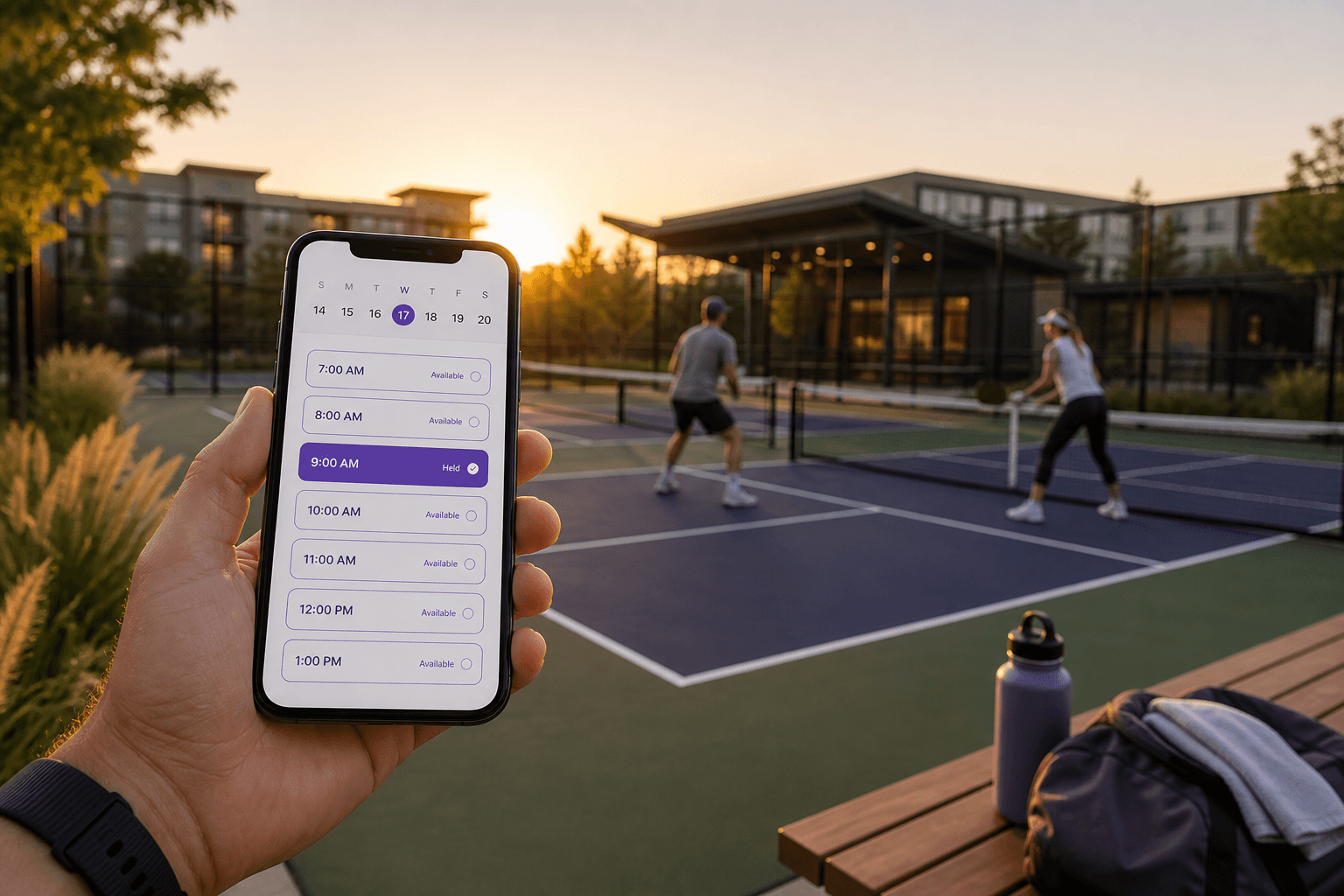
Some amenities are free. Others need a booking fee — a clubhouse deposit, a court reservation charge, or a guest-parking fee. HoldATime can collect that fee when someone books, then send the money to your organization’s Stripe account.
HoldATime does not keep a cut of amenity payments. Card processing is handled by Stripe. You set the fee; the booker pays that amount at checkout; your organization receives the fee minus Stripe’s card costs.
This guide is for organization admins on HoldATime.com who want to turn on paid reservations. If you have not created amenities yet, start with How to set up amenity reservations with HoldATime, then come back here to connect Stripe and add a fee.
Overview
- HoldATime keeps $0 of amenity reservation payments. There is no platform cut on these charges.
- Money goes to your Stripe account, not to HoldATime. Stripe pays out to the bank account you add during setup.
- Amenities can stay free. Leave the booking fee blank (or $0) and nothing changes. Add a fee only on the amenities you want to charge for.
- Stripe handles cards and payouts. HoldATime connects your account and collects the fee you set. You never paste secret API keys into HoldATime.
Before you start
Have these ready:
- Admin access in HoldATime. You must be able to open organization Settings and edit amenities.
- A Stripe account — or time to create one. If you do not have Stripe yet, you can create it during the HoldATime Connect Stripe flow. You do not need to finish Stripe.com first.
- Business details Stripe may ask for. Typical items: legal business name, address, tax ID if requested, a bank account for payouts, and identity verification (a government ID) for the person who controls the account. Stripe decides what it needs; we never store bank numbers or ID images.
- A Core or Pro plan if you are on HoldATime Free or School. Those plans cannot collect booking fees.
Stripe.com setup
Most of the work happens from HoldATime, not by copying keys from the Stripe Dashboard. Use this section so you know what Stripe is and where money shows up later.
1. Create or log into Stripe
- Open dashboard.stripe.com in a browser.
- Create a Stripe account or sign in if you already have one.
- If Stripe asks you to activate the account (business type, country, email), complete those basics. You can also do this when HoldATime opens Stripe Express.
[Screenshot: Stripe Dashboard sign-in or create-account page]
Do not copy a secret API key, publishable key, or webhook secret into HoldATime. HoldATime never asks for those. Connecting happens with a Stripe-hosted Express form launched from your Billing page.
2. Onboarding is launched from HoldATime (Express)
When you click Connect Stripe in HoldATime, Stripe opens a cobranded Express onboarding page. That is the correct path. You are not wiring a custom Stripe integration by hand.
During Express onboarding, Stripe typically asks you to:
- Confirm your country and business type (company, nonprofit, individual, and so on)
- Enter legal name, address, and contact email
- Add a bank account for payouts
- Complete identity checks for the account representative (photo ID, as Stripe requires)
[Screenshot: Stripe Express onboarding — business details and bank account]
Finish every step Stripe marks as required. If you close the window early, return to HoldATime → Settings → Billing and click Connect Stripe or Update Stripe account to continue.
3. Test mode vs Live mode
Stripe has a Test mode (fake cards, no real money) and a Live mode (real charges). For real reservation fees, your connected account must be in Live and fully verified. If a test booking works but live bookings do not, check that you finished Live onboarding — not only Test.
4. Where payouts and balance appear after someone pays
- In HoldATime, open Settings → Billing and click Open Stripe dashboard (shown after your account is connected).
- Or go to dashboard.stripe.com and sign in.
- Open Balances or Payouts to see money that has landed and transfers to your bank.
- Open Payments to see each successful checkout (amount, date, and status).
[Screenshot: Stripe Dashboard Balances / Payouts after a paid reservation]
Payout timing is set by Stripe (often a few business days after the first live charge). HoldATime does not hold your amenity fees.
HoldATime setup
Use these click-by-click steps in HoldATime. The payments card lives on the same Billing page as your HoldATime subscription — it is labeled for resident and guest fees, not your software plan.
1. Open Settings → Billing
- Sign in to HoldATime as an organization admin.
- Open your organization, then go to Settings.
- Click Billing.
- Scroll to Collect resident and guest fees. This is the Stripe Connect section. Your HoldATime subscription is a separate card on the same page.
[Screenshot: Billing page with Collect resident and guest fees]
2. Click Connect Stripe
- Click Connect Stripe.
- Stripe Express opens in the same browser window.
- Complete business details, bank account, and identity checks. Submit when Stripe says you are done.
- Stripe returns you to HoldATime Billing. Status should move from “not started” to in progress, then to Your organization can collect payments when charges are ready.
[Screenshot: Connect Stripe button]
If status still says onboarding is in progress, finish any remaining Stripe requirements (often identity or bank verification). Use Update Stripe account to reopen the form.
3. Confirm Connected status
You are ready to charge when Billing shows that your organization can collect payments.
- If you see a disabled reason from Stripe, fix it in Express, then refresh Billing.
- You can open the Express dashboard anytime with Open Stripe dashboard.
[Screenshot: Connected status — organization can collect payments]
4. Create or edit a resource and add a booking fee
- Go to Resources (or open Resources from your admin menu).
- Click to create a new resource, or open an existing one and choose edit.
- Fill in the usual details (name, hours, rules). A booking fee does not require board approval. You can charge and still confirm instantly, or charge first and require approval after payment.
- Find Booking fee (USD).
- Enter the amount the booker should pay (for example 25.00). Leave it empty for a free resource.
- Optional: add a short payment note (what the fee covers). Stripe Checkout is how they pay — this note is only extra context.
- Save the amenity. If Stripe is not connected yet, HoldATime blocks the save and links you back to Billing.
[Screenshot: Amenity editor with Booking fee field and How to set up Stripe payments link]
The form shows the listed fee and an estimate of what you receive after typical US card processing (about 2.9% + $0.30). The booker always pays the listed fee. Recurring series cannot be used on a paid amenity in this version — one checkout per reservation.
5. How a member or guest books and pays
- The booker opens your HoldATime booking page and chooses the paid amenity.
- They pick a date and time, accept the rules, and continue.
- HoldATime holds the slot and sends them to Stripe Checkout for the fee you set. They do not type a card into HoldATime.
- After a successful payment they return to HoldATime. The reservation is confirmed — or it moves to pending approval if you turned on board approval.
- If they cancel Checkout, the slot stays held for a short time (about 20 minutes) so they can try again. Unpaid holds then expire and the time opens up.
[Screenshot: Stripe Checkout paying an amenity booking fee]
6. How an admin sees a paid reservation
- Open the amenity reservations list for your organization (board / admin reservations).
- Awaiting payment means the slot is held and Checkout is not finished yet.
- After payment, the row moves to Confirmed (or Pending requests if approval is required).
- The fee amount is stored on that reservation so later fee changes do not rewrite it.
[Screenshot: Admin reservations list with Awaiting payment and fee]
The booker also sees Awaiting payment on My reservations until Checkout completes. A confirmed pass is not issued until the reservation is paid (and approved, if you require approval).
Troubleshooting
Connect status is still pending
Open Settings → Billing → Update Stripe account and finish every Stripe requirement. Identity or bank verification can take extra time. Refresh Billing after Stripe emails you. Until status says you can collect payments, you cannot save a booking fee.
I cannot save a paid amenity
HoldATime requires a connected, charges-ready Stripe account before a booking fee will save. Use the Open payout settings link on the amenity form, complete Connect Stripe, then return and save. Free and School plans also cannot set fees — upgrade to Core or Pro first.
Payment succeeded but the reservation still says awaiting payment
The return page asks HoldATime to confirm the Checkout session. If the page still looks pending, wait a moment and refresh My reservations or the admin list. Stripe also notifies HoldATime in the background; a short delay is normal. If the card was charged and the reservation is still unpaid after several minutes, contact support@holdatime.com with the amenity name and time.
The booker’s payment failed
They can open the amenity again and complete Checkout with another card. A failed or abandoned Checkout does not confirm the reservation. If the hold expired, they pick the slot again.
Refunds
There is no refund button on the amenity reservation screen yet. Destination charges are refunded by HoldATime (the platform), not from the Express dashboard. Email support@holdatime.com with the reservation and reason. Do not expect to reverse a reservation payment yourself inside Stripe Express.
Security and trust
- HoldATime never stores bank account numbers, routing numbers, or Social Security numbers. Those stay on Stripe’s Express forms.
- Onboarding is Stripe-hosted. You complete KYC on Stripe, then return to HoldATime.
- Platform fee on amenity charges is $0. HoldATime only passes through an estimate of Stripe’s card processing so the platform does not lose money on the charge. Your organization nets the listed fee minus those card costs.
- The booker never types a card into HoldATime. Amounts are calculated on the server from the amenity fee you saved — not from a price the browser submits.
FAQ
Does HoldATime take a percentage of amenity fees?
No. HoldATime’s cut on amenity reservation charges is $0. Stripe’s card processing is deducted from what your organization receives.
Do I paste Stripe API keys into HoldATime?
No. Click Connect Stripe on Settings → Billing and finish Express onboarding.
Can some amenities stay free?
Yes. Only amenities with a booking fee greater than zero go through Checkout.
Do I have to require approval to charge a fee?
No. Charge only, approve only, or charge first and approve after payment.
Can I charge for a repeating series?
Not in this version. Paid amenities cannot use recurring reservations. Book each paid occurrence separately.
Where does the money go?
To the Stripe connected account you onboarded, then to the bank account you added in Express. Check Balances and Payouts in the Stripe dashboard.
Ready to take a paid booking? Sign up or sign in, connect Stripe on Billing, add a booking fee, and run one test reservation.
HOA boards that need resident amenity bookings with the rest of the portal should use the HOA amenity reservation system on HOAResidents.com. This HoldATime guide is for clubs, schools, and public facilities.
In the product
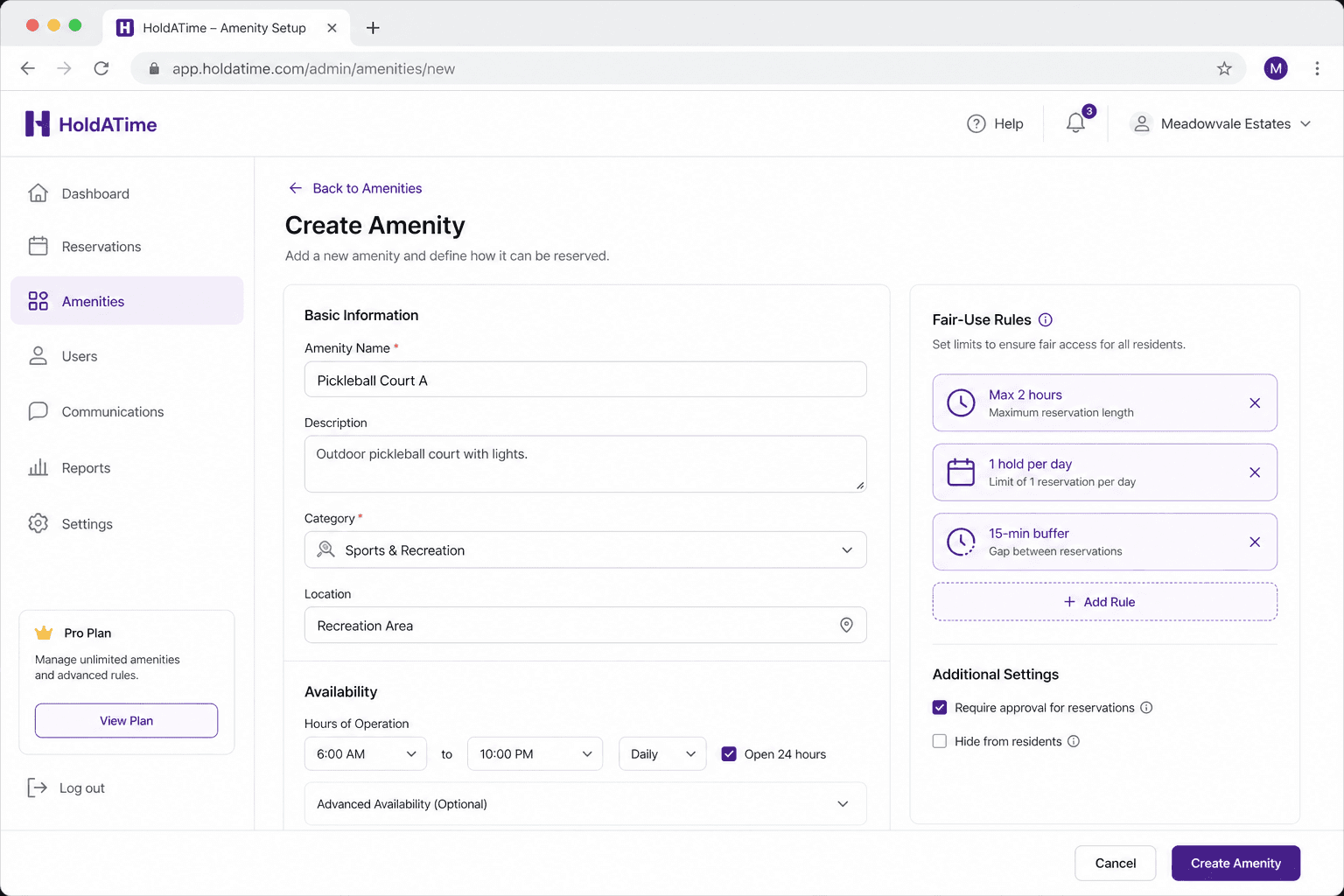
Amenity setup: add a booking fee in USD after Stripe is connected on Settings → Billing. 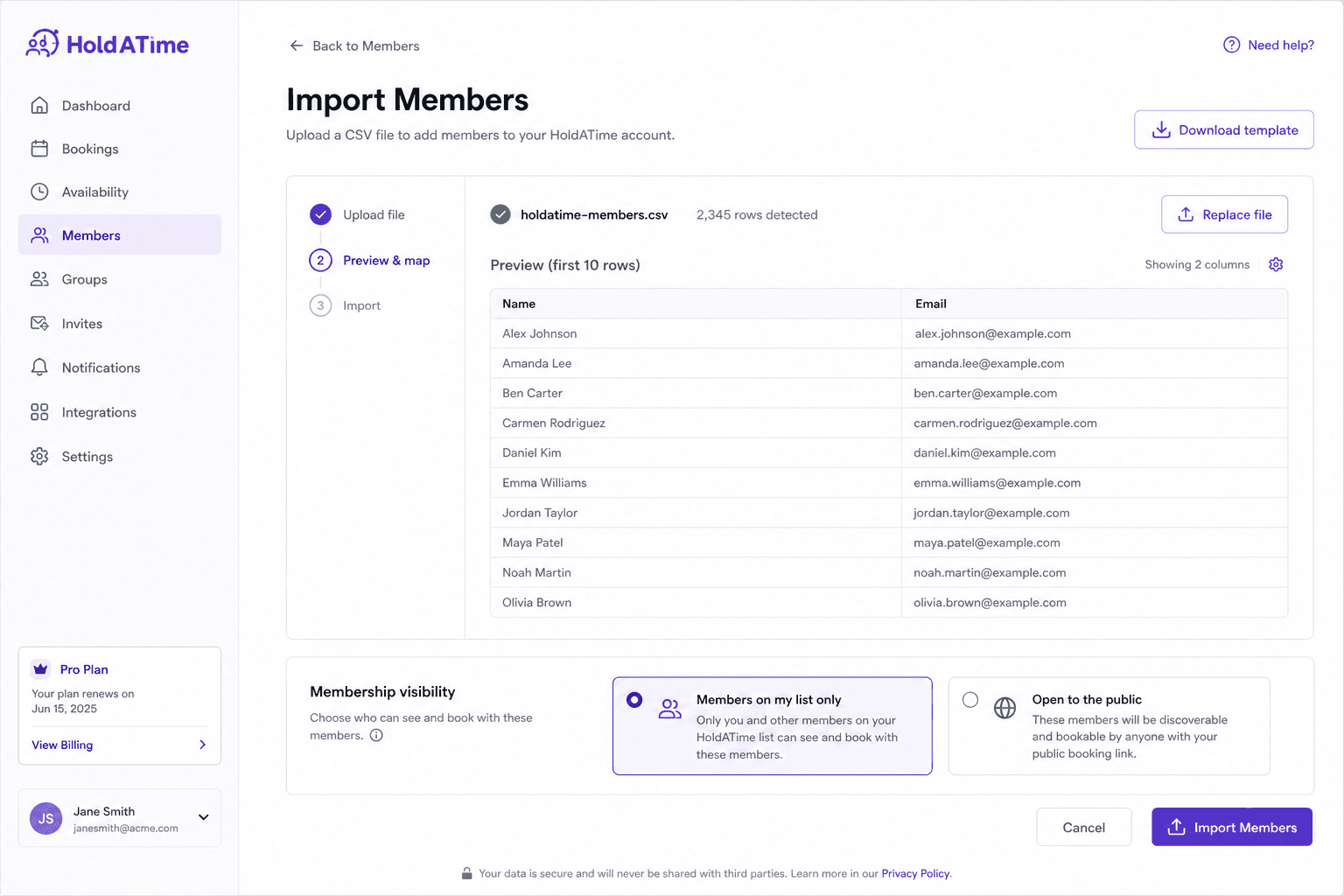
Open Settings → Billing and use Collect resident and guest fees to start Stripe Express onboarding. 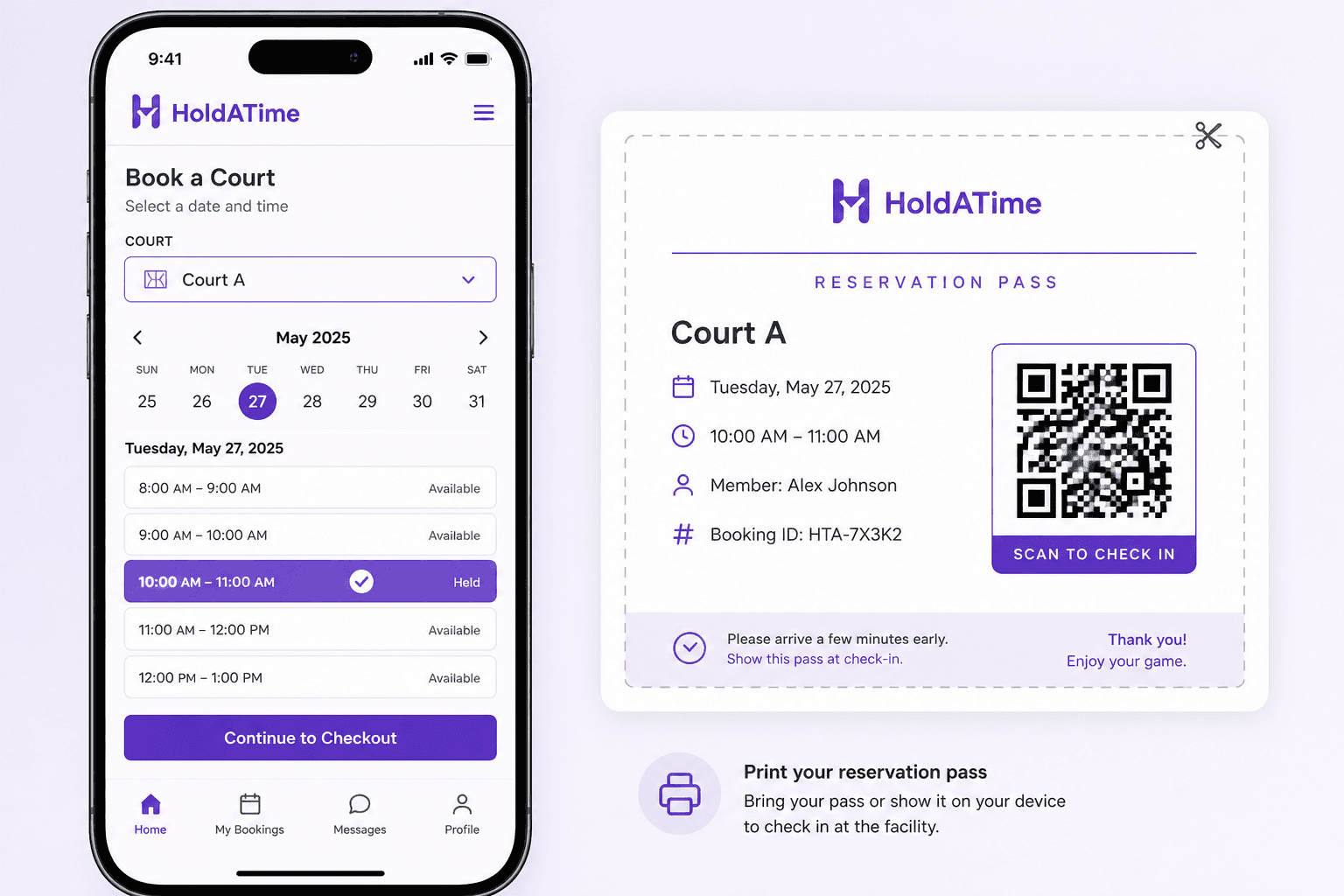
Bookers pay the listed fee at Stripe Checkout. The slot stays held until payment succeeds or expires.